Designer – Place Carving Tabs
The place tabs tool is used to define raster carving tabs from manually placed lines made with the drawing tools. These types of tabs are for 3D raster carvings only.

The place tabs tool is used to define raster carving tabs from manually placed lines made with the drawing tools. These types of tabs are for 3D raster carvings only.
The Rout Tools are a collection of tools for applying router bits as a variable depth path following a selection of profiles. There is also a quick edge rout tool for automatically applying a router profile to the edge of the workpiece.
Make pattern allows you to combine multiple elements together to create a new pattern that is added to your pattern library.
The Centerline Text feature adds an additional Rout Mode in the Text Tool feature. This feature uses the 60° and 90° V-groove bits to follow the center of the letters for a clean engraved, v-cut look. The depth of the centerline is determined by the width of the text selected.
The Extrude tool allows a profile to be extruded along the inside of a closed vector shape. The angle of the extrusion can be adjusted by setting horizontal, vertical, or setting a custom angle.
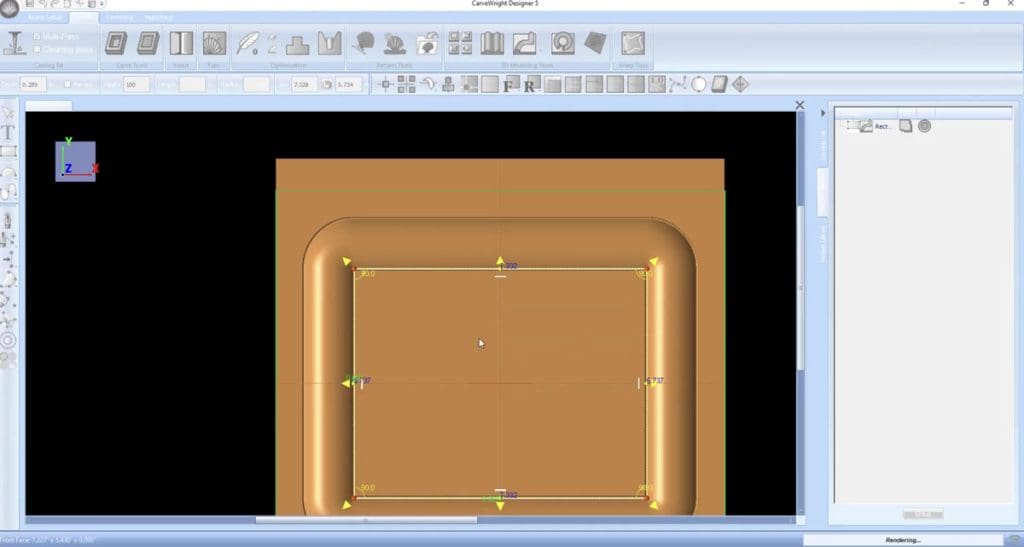
The Sweep tools will allow a drawn profile to be swept along a single vector path. This means the profile will follow the line along it’s entire length. There are two types of sweeps, rounded, which will round corners, and corner, which leaves sharp corners.
The Tilt Tool, available in the Modeling Suite, allows a pattern to be tilted vertically, horizontally, or a combination of both can be used to achieve different angles.
The Revolve Tool, available in the Modeling Suite, allows for defining a profile and revolving that profile shape around a circle.
The Puffing Tools, available in the Modeling Suite, are useful 3D modeling tools for quickly defining dimension to drawn shapes.
Sweep with Rails, available in the Modeling Suite, is a powerful 3D modeling tool that allows for the creation of many dynamic shapes.